How to Extract Contact Info and Social Links From Google Maps
Extract contact info from Google Maps and half the outreach channels are still missing.
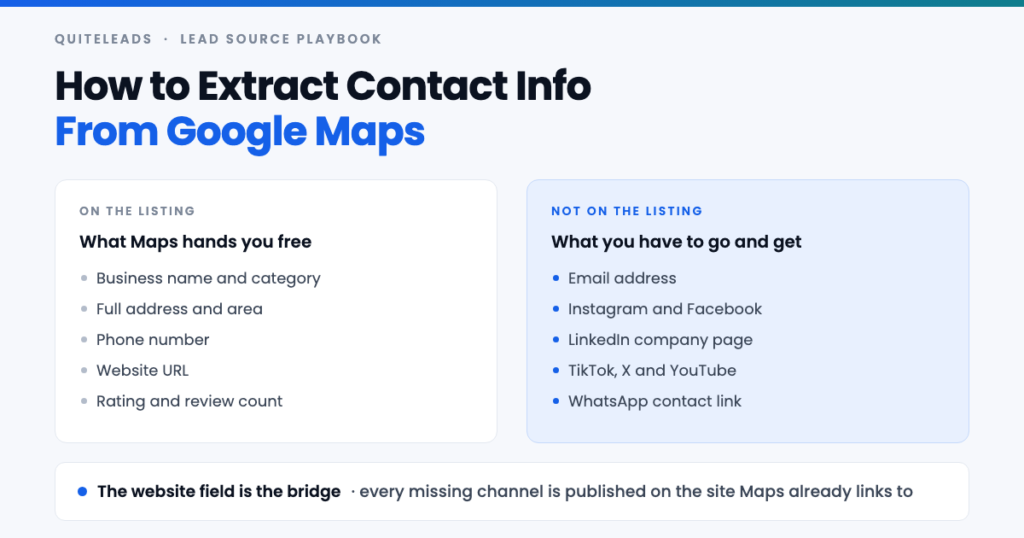
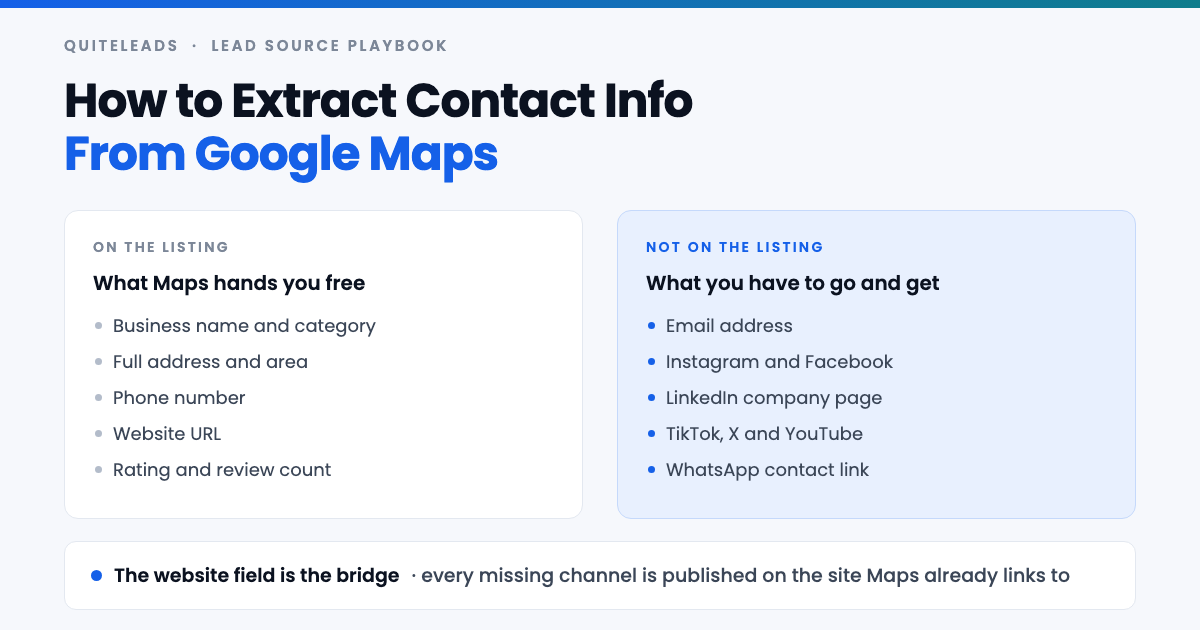
Short answer: Google Maps publishes the phone number, the address and the website, but never the email address and never the social profiles. To extract contact info from Google Maps in full, you take what the listing shows, then follow the website field to the business’s own site, where the email and the Instagram, Facebook, LinkedIn and TikTok links are almost always sitting in the footer.
Key takeaways
- Maps gives you four fields for free: name, category, address, phone and website.
- Email and social links are never on the listing. They live on the business’s own website.
- The website URL is the bridge. No website usually means no email and no socials.
- Doing it by hand costs roughly two minutes per business. A hundred listings is a working day.
- Narrow searches beat broad ones. One trade, one city, one search at a time.
Table of contents
What contact info Google Maps actually shows
Before you try to extract contact info from Google Maps, it helps to be precise about what is on the page and what is not. Open any business listing and the side panel gives you a fixed set of fields, filled in by the owner or by Google itself.
- Business name and the category Google filed it under.
- Full street address, plus a plus code and the neighbourhood.
- Phone number, usually the main line rather than a direct dial.
- Website URL, when the owner has added one.
- Rating, review count and opening hours, which tell you whether the business is alive.
- Photos, the price band and the odd attribute such as “wheelchair accessible” or “identifies as women-owned”.
That is the whole of it. There is no email field in a Google Business Profile, and there is no field for an Instagram handle, a Facebook page or a LinkedIn company page. So when someone says they want to extract contact info from Google Maps, what they usually mean is that they want the two things Maps refuses to publish.
Why the social media links are missing
A Google Business Profile is a local search record, not a directory of a company’s presence on other platforms. Google has no interest in sending someone from its own result straight to Instagram, so the profile form simply does not ask for social handles. Owners could not add them even if they wanted to.
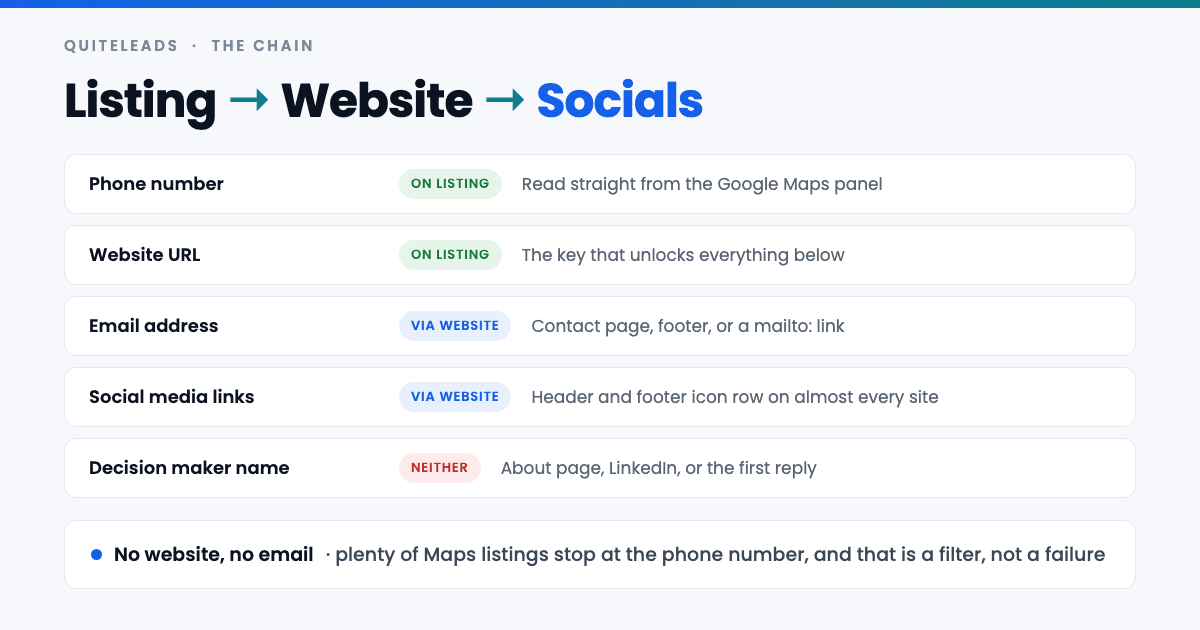
What this means in practice is pleasant rather than annoying. Because a business cannot publish its socials on Maps, it publishes them where it always has: in the header or footer of its own website, in the row of little round icons that almost every small-business site carries. The listing hands you the address of that site. The site hands you the rest.
So the honest description of the job is a two-hop chain. Google Maps is hop one and it is easy. The business website is hop two, and it is where the email address and every social profile actually live. Any method that claims to extract contact info from Google Maps without touching the website is either guessing at emails or has quietly done the second hop for you.
How to extract contact info from Google Maps by hand
Extract contact info from Google Maps by hand once before you automate anything. It takes ten minutes and it tells you exactly what your niche looks like — how many businesses have a website, whether they publish an email or hide behind a form, and which platform they actually use.
- Run a narrow search. “Plumbers in Leeds”, not “plumbers”. Maps shows a limited number of results per search, so a tight query returns a more complete list than a broad one.
- Open the first listing and copy the name, phone, address and website into a spreadsheet. Add a column for rating and review count while you are there.
- Open the website in a new tab. Scroll to the footer first — the social icon row and a contact email are usually both there.
- Check the contact page if the footer gave you nothing. Look for a real mailbox rather than a form.
- Copy each social URL into its own column. One column per platform, not one column of mixed links, or you will regret it when you sort.
- Repeat, and time yourself. Two minutes per business is a realistic pace once you have a rhythm.
Two minutes each is fine for ten businesses and unbearable for two hundred. Ten listings is twenty minutes. A hundred is over three hours of tab-switching, and you will make copy-paste mistakes somewhere in the middle of it. That arithmetic is the entire reason tooling exists for this, and it is worth feeling once rather than taking on trust.
How to find the social profiles from the website
The footer is the first place to look and it works most of the time. When it does not, four other spots cover nearly every remaining case.
- The header. Restaurants and salons often put the Instagram icon in the top navigation instead of the footer, because that is the platform doing their marketing.
- An embedded feed. A “Follow us on Instagram” grid on the homepage is a link to the handle, even when no icon exists.
- The contact page. Where a business lists WhatsApp, Messenger or a booking link alongside the phone number.
- The about or team page. Personal LinkedIn profiles for the owner and senior staff, which are often better outreach targets than the company page.
One habit saves you time later: record the profile URL, not the handle. instagram.com/thebusiness is unambiguous and clickable; “@thebusiness” written into a spreadsheet needs rebuilding before you can use it, and handles collide across platforms.
Do not bother chasing every network. For most local businesses, Instagram and Facebook are where someone actually reads a message, LinkedIn matters for B2B and professional services, and a TikTok or YouTube link is a nice-to-have that rarely gets you a reply. Collect what is there, prioritise the two that fit your buyer.
What to do when there is no website
A meaningful share of Maps listings have no website at all — plenty of small trades run entirely on the phone. When you extract contact info from Google Maps, those rows will come back with a name, a phone number and nothing else.
Treat that as a signal rather than a dead end. If you sell websites, SEO, booking systems or anything digital, a business with a phone number and no site is not a poor lead — it is the most qualified lead on the sheet, and you can say something specific and true in the first line. If you sell anything that needs an email thread to close, park those rows in a separate tab and work them by phone, or not at all.
Two exceptions are worth a look before you write a listing off. Some businesses put a Facebook page in the website field, which gives you a social profile directly. Others carry a link to a marketplace or booking platform — Booksy, Treatwell, an Etsy shop — and those pages often publish an email that the Maps listing does not.
How to search Maps so the list is worth extracting
Data quality is decided by the search, not by the extraction. Google returns a capped set of results for any one query and stops, so a single broad search will quietly miss most of the market while looking complete.
- Split by area, not by city. “Cafes in Manchester” gives you a slice. Running the same query per district gives you the city.
- Split by the words your market uses. “Dentist”, “dental clinic” and “orthodontist” surface overlapping but different sets.
- Zoom before you search. Maps biases results to the visible map area, so framing the map on one district and re-running the search is the cheapest way to get a different set.
- Sanity-check the tail. If the last results are in another county, that query is exhausted — narrow it rather than scrolling further.
Get this part right and everything downstream is easier, because you only extract contact info from Google Maps once per business. Six narrow searches beat one broad one nearly every time, and the overlap between them is not wasted effort — a business that shows up under three different queries is usually well-established and worth calling first.
The faster way: extract contact info in bulk
The thinking above is free. The tedium is the bottleneck: opening listings one at a time, clicking through to each website, hunting the footer for an email, and losing track of which businesses you have already done.
That is the part QuiteLeads handles. It is a Chrome extension, so it works on the Google Maps page you already have open — no login handed over and no cloud queue waiting on someone else’s server. You run your search, and it collects the listings on screen along with the fields Maps publishes.
The second hop is the part that matters here. Emails and phone numbers are read from each business’s own website and land attached to the listing, and the social profiles found there — Instagram, Facebook, LinkedIn, TikTok, X, YouTube — are attached in the same pass. Businesses you have already collected are skipped automatically, so running the same city twice does not give you a sheet full of duplicates.
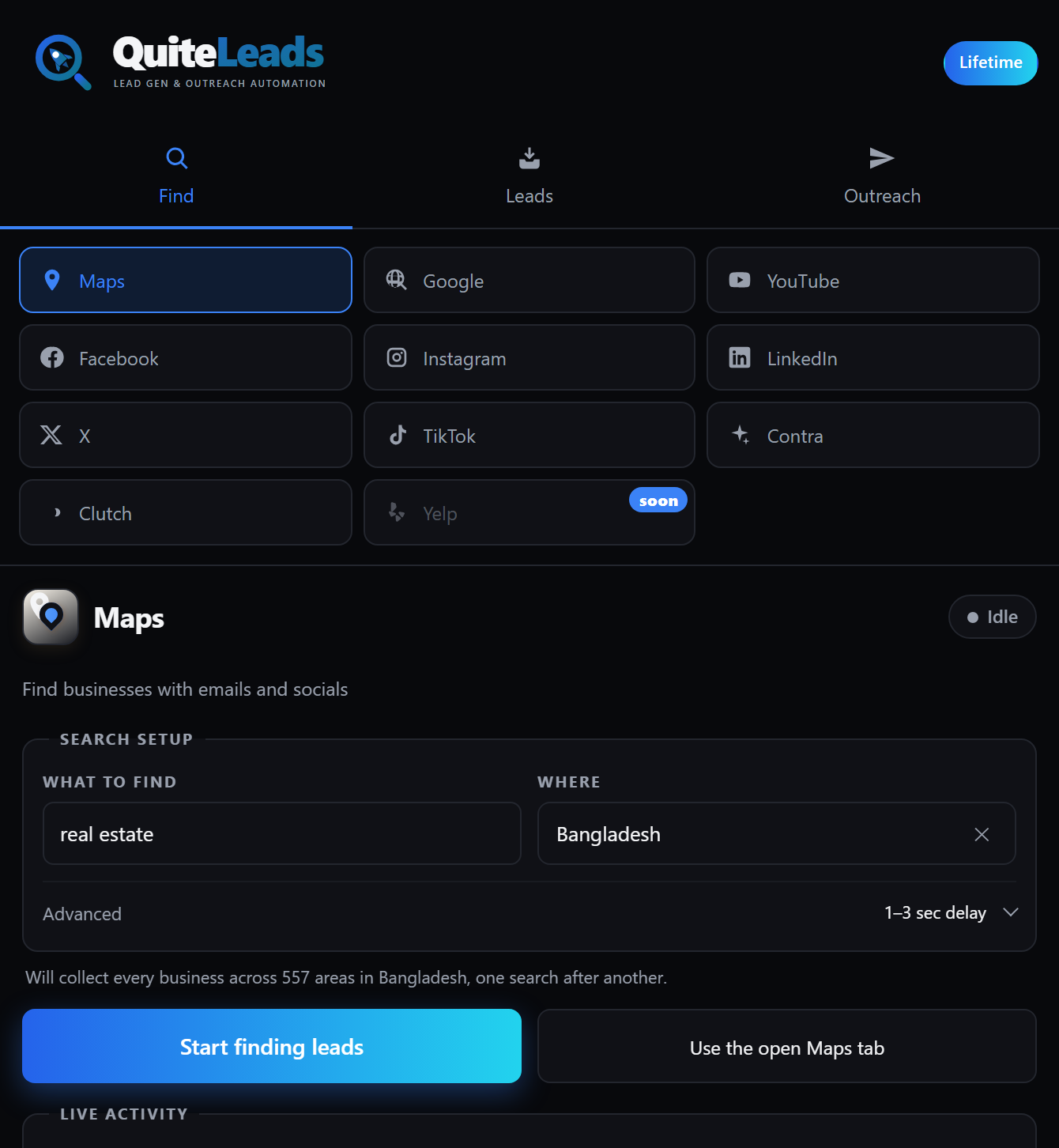
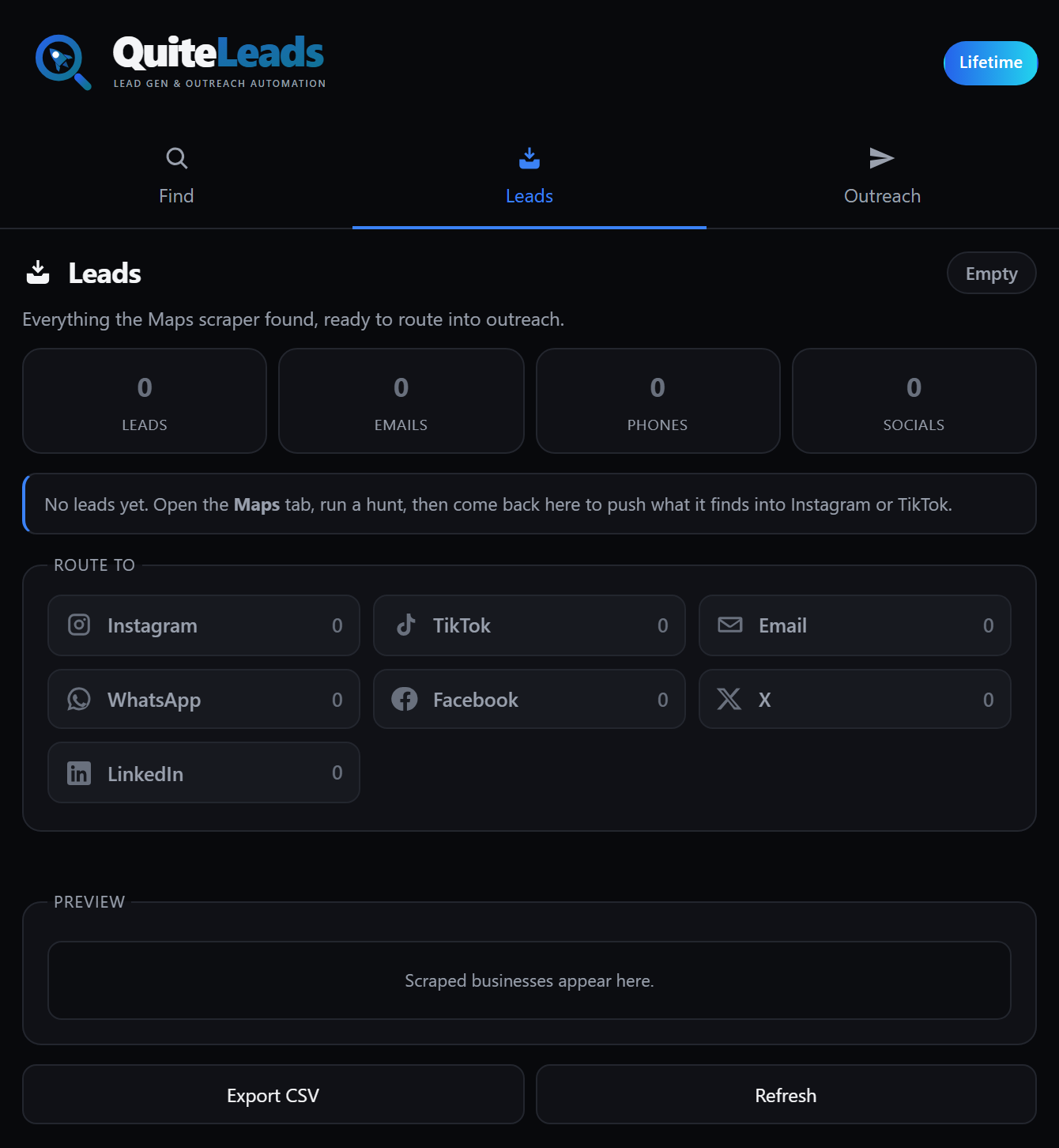
Every list sits in one dashboard next to your leads from Instagram, LinkedIn, TikTok, Facebook and the rest, so a business you found on Maps and a profile you found on Instagram are the same kind of record. Export to CSV or JSON whenever you want, or message straight from the list.
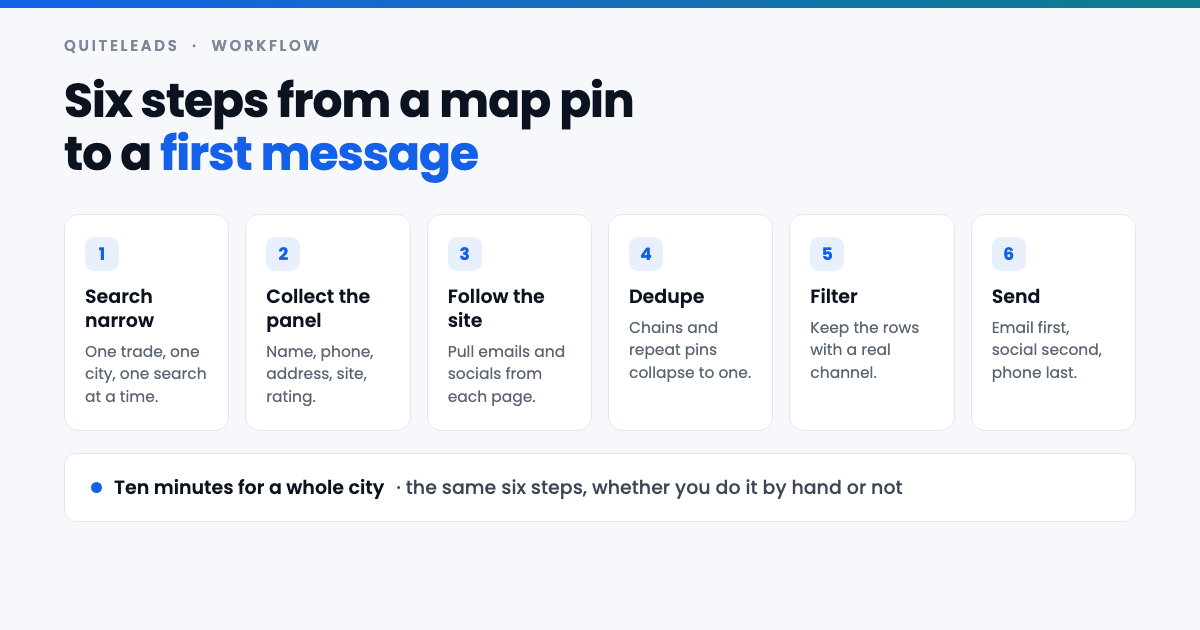
Practically, the workflow this article argues for takes about ten minutes: run four or five narrow searches across the districts you care about, let the duplicates collapse, filter to the rows that came back with an email or a social profile, and start there.
The eight fields worth keeping
When you extract contact info from Google Maps in bulk, it is tempting to keep everything. Resist it — a sheet with thirty columns is a sheet nobody sorts. These eight carry the weight.
| Field | Where it comes from | What you use it for |
|---|---|---|
| Business name | Listing | Personalising the first line |
| Category | Listing | Segmenting the list by offer |
| Phone | Listing | The fallback channel |
| Website | Listing | The bridge to everything below |
| Website | The primary channel for most B2B | |
| Social profiles | Website | The channel small local businesses read |
| Rating and reviews | Listing | Proof the business is trading |
| City or district | Listing | Routing, timing and local proof |
Review count deserves a word. It is the closest thing to a health check that a listing gives you: a business with two hundred reviews and a recent one is unquestionably trading, while a business with three reviews from 2019 may not exist any more. Sort by it before you spend a morning on outreach.
How to filter the list before you contact anyone
A raw export is not a prospect list. Everything you extract contact info from Google Maps to get still has to survive five passes before it earns a message. Five passes turn one into the other, and they take about five minutes.
- Drop the rows with no reachable channel. A name and an address is a fact, not a lead.
- Drop the national chains. Every branch of a franchise shares one head office that will not read your message, and they bloat a city list badly.
- Check the email is a real mailbox. Generic addresses are fine and normal for small businesses; addresses belonging to a website builder or a plugin vendor are not the business at all.
- Drop the permanently closed. Maps flags them, and messaging one is the fastest way to look automated.
- Sort by review count. Work the top of that list first, on the days you are sharpest.
Applied honestly, these passes usually remove a good third of a raw Maps export. That is not lost work — it is the difference between an afternoon of outreach that produces replies and one that produces bounces.
A worked example: 120 dental clinics
Say you sell patient booking software to private dental practices in Birmingham. The manual route is one search, roughly 120 listings, and two minutes each to open the listing, open the site, find the footer and copy the email and the Instagram link. That is about four hours, spread over a day you will not enjoy, and by clinic sixty you are pasting into the wrong row.
The bulk route is five narrow searches — “dentist”, “dental clinic”, “orthodontist”, “cosmetic dentist” and “emergency dentist”, each run across three or four districts — collected in one pass with the websites followed automatically. Ten minutes of clicking, then five minutes of filtering.
The important difference is not the four hours. It is what the two lists contain. The manual list is 120 rows because that is all you had the patience for. The bulk list is the whole city across five search terms, deduplicated, with an email or a social profile on most rows and the chains and the closed practices already stripped out. One of those is a market. The other is a sample.
Mistakes that ruin a Google Maps list
Most people who conclude that it was not worth the trouble to extract contact info from Google Maps made one of these six mistakes rather than picking a bad source.
- Guessing emails. Inventing
info@for a domain that does not use it burns your sending reputation for every real prospect on the list. Take the address the site publishes or leave the field empty. - One broad search. “Restaurants in London” is not a market, it is the first page of one.
- Skipping deduplication. Message the same clinic twice from two search terms and you have told them you are automated.
- Messaging in the order collected. Sort first, or you spend your best hours on your worst prospects.
- Treating the list as permanent. Local businesses close, rebrand and change hands constantly. A Maps list older than a quarter deserves a refresh before a second pass.
- Sending the same message to every channel. An email that reads like a DM gets deleted, and a DM that reads like an email gets ignored.
Maps vs the Places API vs directories
There is more than one way to get local business data, and they are not interchangeable.
- The Google Places API. Official, structured and billed per request. It returns the same fields the listing shows, which means it does not solve the actual problem: there is still no email and no social profile, and you now need a developer and a billing account. Details are in the Places API documentation.
- Industry directories. Often carry an email where Maps does not, and sometimes a named contact. Coverage is patchy and the data ages badly, but they are a useful second pass on the rows Maps left thin.
- Social platforms directly. Searching Instagram or LinkedIn by location and category finds businesses that never claimed a Maps listing at all, which is a genuinely different set of prospects.
- Bought lists. Cheap, stale and sold to your competitors at the same time. The reply rates tell the story.
For most people the honest answer is to extract contact info from Google Maps for coverage, then use one directory or one social search to fill the gaps on the rows that came back without a channel.
Is it legal to extract contact info from Google Maps?
Two separate questions hide inside that one, and it pays to keep them apart. The first is whether collecting the data is allowed. The second is whether you may then send marketing to it — and the second is the one that carries real penalties.
On collection: a business address, phone number and website published on a public listing is business contact information, deliberately made public so that customers can get in touch. Google’s own position on automated access is set out in its Terms of Service, and it is worth reading rather than taking anyone’s summary of it.
On sending, the rules depend on where your prospect is. Under UK and EU rules, unsolicited email to a corporate subscriber sits on a different footing to email to a sole trader or an individual, and every message must identify you and offer a way to opt out. In the United States, CAN-SPAM allows cold email to businesses but requires accurate headers, a physical postal address and a working unsubscribe link. Personal data such as a named owner’s direct email brings GDPR into play regardless of how you found it.
None of that is legal advice, and the rules move. The practical version: collect what businesses publish for exactly this purpose, keep the volumes sane, say who you are, honour an opt-out the first time you are asked, and delete anyone who tells you to. If you are running high volumes into a regulated market, ask a solicitor rather than a blog.
Which channel to use first
Once you extract contact info from Google Maps you usually end up with three ways to reach the same business, and the order matters more than the message.
- Email first for anything with a price tag, a proposal or a contract. It is the channel a business checks on purpose, and it leaves a thread you can follow up.
- Social second, and first for salons, restaurants, gyms and trades where the owner runs the Instagram account themselves and reads the messages on their phone.
- Phone last — or first, if you are genuinely good on the phone and selling something local. It is the highest-effort channel and by far the highest hit rate.
Whichever you pick, reference something specific and true from the listing: the district, the service, a detail from the site. Never mention how you built the list. “I saw you’re the only clinic in Moseley offering same-day appointments” is a reason to be in someone’s inbox. “I found your details on Google Maps” is not.
What to measure
Four numbers tell you whether it was worth the effort to extract contact info from Google Maps at all, and they stop the whole thing being a matter of opinion:
- Contactable rate — the share of collected listings that came back with an email or a social profile. Below half, your search terms are wrong or the niche genuinely is not online.
- Bounce rate — anything above a few percent means somebody is guessing at addresses.
- Reply rate by channel — track email and social separately, because they will differ by a lot and the answer decides where you spend next month.
- Minutes per booked call — collection plus filtering plus sending, divided by calls. The only number that actually pays you.
Run one city, hold the message constant, and read the last two after a fortnight. Your niche may disagree with this article, and your numbers outrank my opinion.
Frequently asked questions
Can you get email addresses from Google Maps?
Not from the listing itself – a Google Business Profile has no email field. The email is found by following the website link on the listing to the business’s own site, where it is usually published in the footer or on the contact page.
How do you find a business’s social media links from Google Maps?
Open the website listed on the Maps profile and look at the footer, then the header. Almost every small-business site carries a row of social icons in one of those two places, and the about page often adds personal LinkedIn profiles for the owner.
Why doesn’t Google Maps show Instagram or Facebook links?
A Business Profile is a local search record, not a directory of a company’s other platforms, so the profile form does not ask for social handles. Owners publish them on their own website instead, which is why the website field is the route to them.
How long does it take to extract contact info from Google Maps manually?
About two minutes per business once you have a rhythm: open the listing, copy the fields, open the website, find the email and the socials. Ten listings is twenty minutes and a hundred is over three hours, which is where doing it in bulk starts to pay.
Is it legal to extract contact info from Google Maps?
Collecting business contact details that are published publicly is generally treated differently from collecting personal data, but sending is governed separately by GDPR, PECR and CAN-SPAM depending on where your prospect is. Identify yourself, offer an opt-out and honour it, and take legal advice for high volumes.
What should you do with listings that have no website?
Keep them if you sell anything digital – a business with a phone number and no website is a qualified lead for web design, SEO or booking software. Otherwise work them by phone, or check whether the website field points to a Facebook page or a booking platform instead.
The short version
That is how to extract contact info from Google Maps in one line. The listing gives you the phone and the website. The website gives you the email and the socials. The search you run decides whether any of it is worth having. Do it by hand once so you know your niche, then stop doing it by hand.
Get QuiteLeads and pull a full city this week, and pull a whole city at once with the grid method for scraping unlimited Google Maps leads, or start from the top with the complete guide to Google Maps scraping for lead generation.